Skip to content

Share in one tap

Send a lightweight, easy-to-open link that keeps every detail updated without resending files.

Shared by linkMade for mobileRSVP
Digital invitations for WhatsApp
Digital invitation preview

Digital experience

Designed to delight

More than a date

Every detail, considered

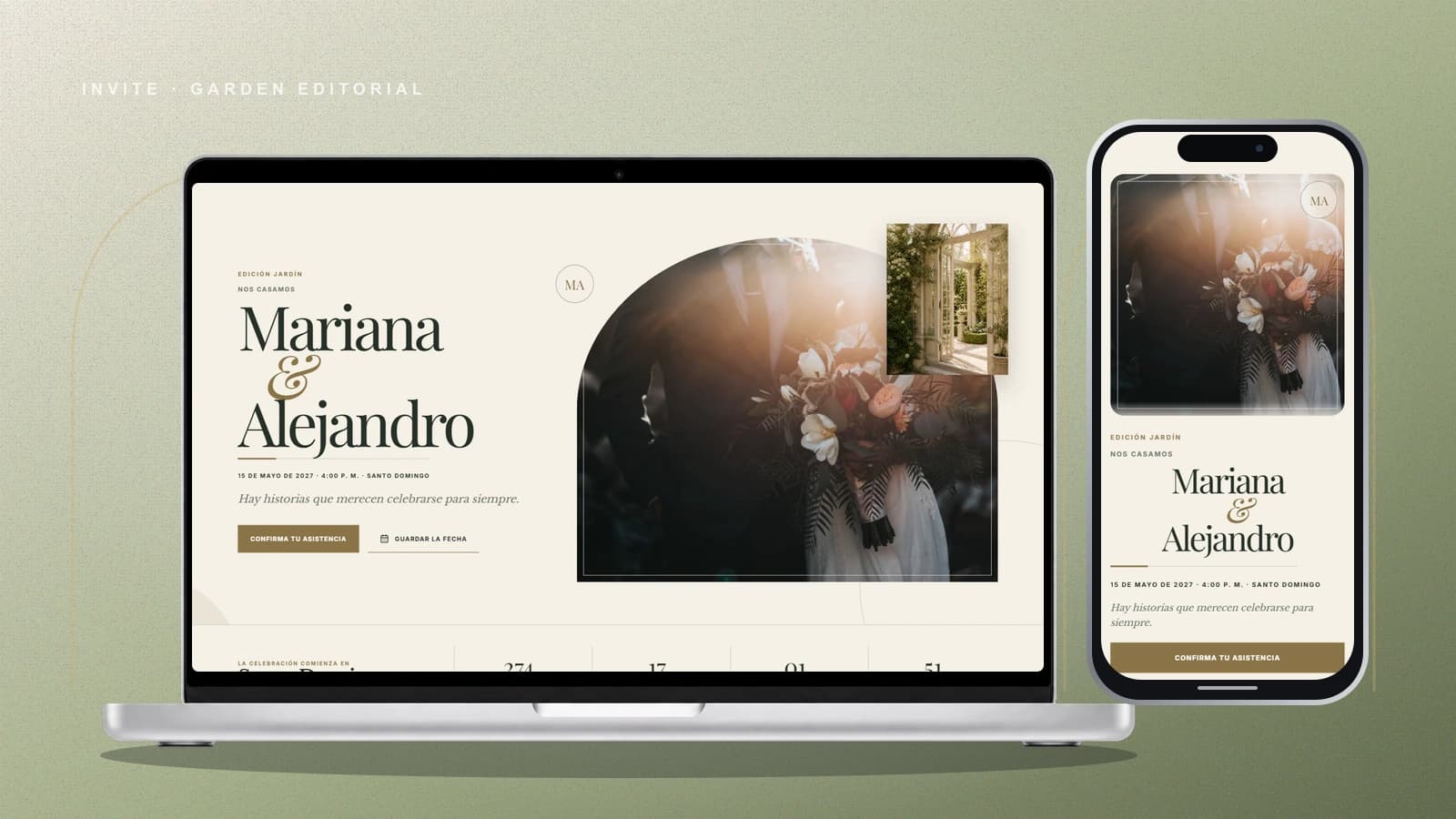
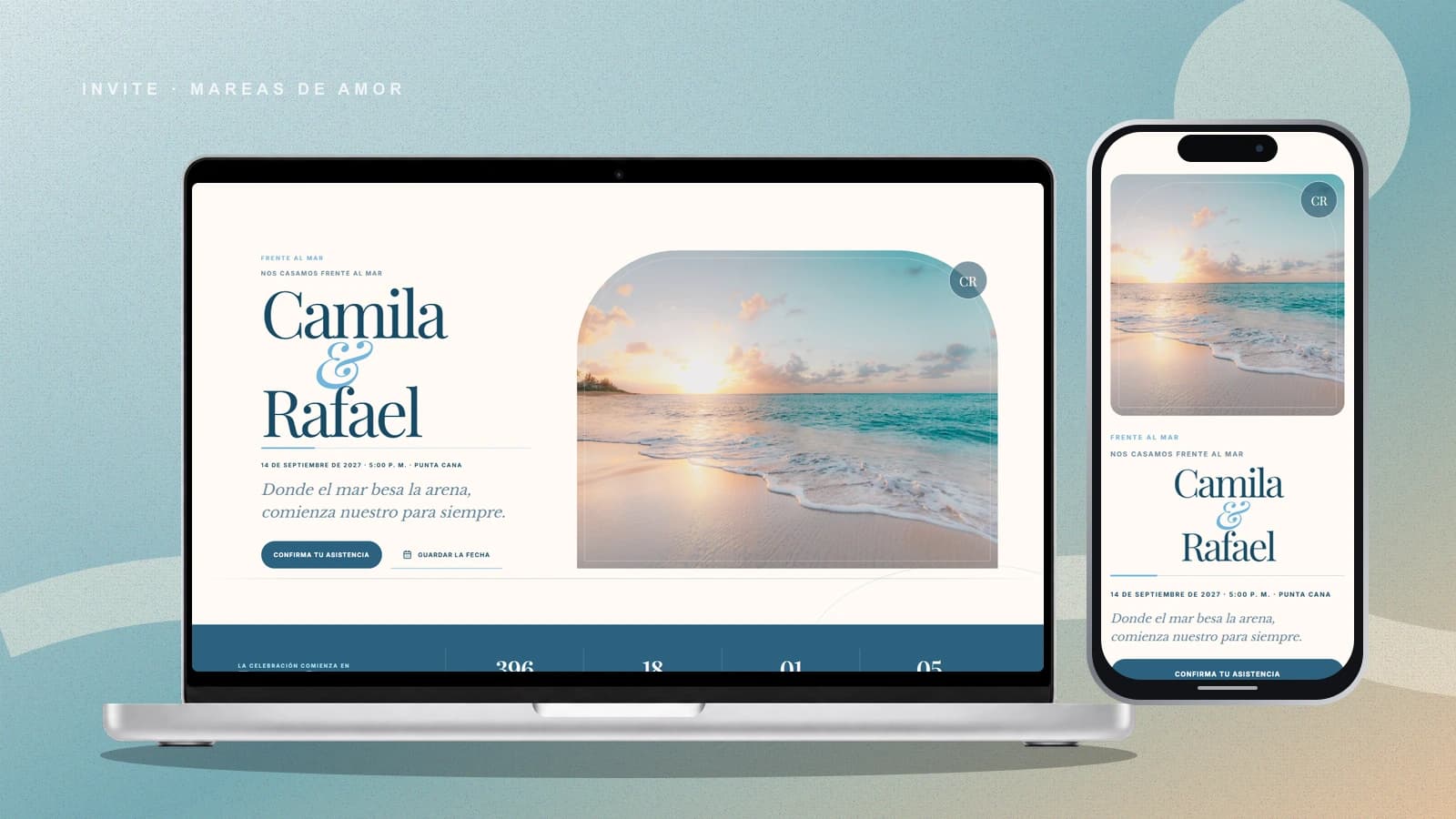
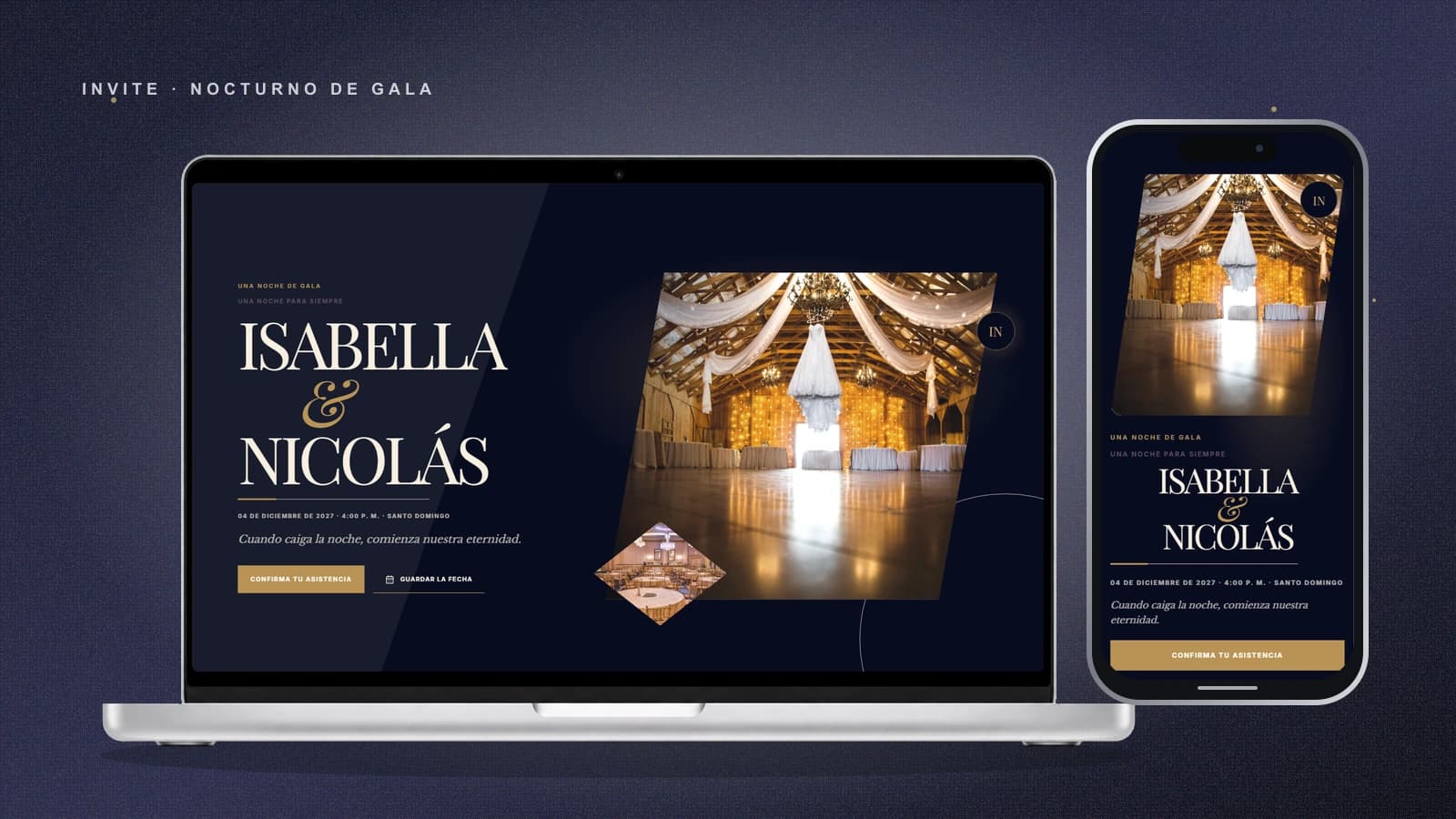
Create an elegant digital invitation for WhatsApp with location, photos, music, and online RSVP.

Digital invitation opened from a WhatsApp link

One link

Bring date, location, gallery, music, and RSVP into one experience.

Visual story inside a mobile invitation

Designed for mobile

The invitation adapts to the device used to open it.

Event location opened from the chat

Always updated

Correct details without creating and resending a new image or PDF.

Digital invitation shared from a phone
Date and time Location Gifts RSVP

Quick guide

From template to chat

Create, publish, and share without heavy files or outdated versions.

  1. 01

    Personalize for free

    Start a draft without a card, add the details, and preview the invitation live.

  2. 02

    Pay and publish

    When it is ready, make the one-time payment to generate your stable invitation link.

  3. 03

    Share and collect RSVPs

    Send it through WhatsApp and manage responses from your private dashboard.

FAQ

Everything clear before you share

Do guests need to install an app?

No. The invitation opens as a web page from the shared link.

Can I edit it after sending?

Yes. Published changes appear when the same link is opened again.

One message that contains everything

How to send a digital invitation through WhatsApp

Sharing through WhatsApp does not mean turning your invitation into a compressed image or a heavy PDF. Invite sends a web link that opens in the phone browser and contains the complete experience. Guests can view the location, listen to music, see photographs, and confirm attendance without installing anything or searching through older messages.

Prepare the link before you send it

Review the guest view

Before sending, open the invitation on a phone and move through it as another person would. Check names, date, time zone, map links, phone numbers, dress code, and the RSVP deadline.

Write a short, recognizable message

Introduce the link with the couple or host names and one clear sentence. Do not repeat every event detail in the chat. The goal is to keep one current source that guests can easily open again.

Send personally whenever possible

An individual link preserves the guest context and assigned seats. For a larger list, organize delivery by family or segment and avoid exposing phone numbers in mass conversations that do not need them.

Web link, image, or PDF: what changes when you share

All three formats fit inside a chat, but they behave differently when details change or a guest needs to take action.

01

Update details

Invite link
The same link displays the new version.
Image or PDF
Create and resend another file.
02

Open a location

Invite link
The map is one tap away.
Image or PDF
Copy or search for the address manually.
03

Confirm attendance

Invite link
RSVP is part of the experience.
Image or PDF
Reply in another chat or external form.
04

Mobile experience

Invite link
Adapts to the screen and content.
Image or PDF
May require zooming, downloading, or horizontal scrolling.
05

Message weight

Invite link
Share one lightweight web address.
Image or PDF
Photos and PDFs may be compressed or slow to download.

What happens after you tap Send

Does the guest need WhatsApp or another app?

WhatsApp is only the channel that delivers the link. The invitation opens as a web page in the browser, so guests need neither an Invite account nor another application. You can send the same address through email or a direct message as well.

Can I correct something after sending?

Yes. Publish the correction and the same link shows the updated version when it is opened again. When the change affects an important decision—such as a different location or time—send a short notice too, so nobody depends on revisiting the page on their own.

What should I write with the invitation?

Identify the event, greet the person naturally, and invite them to open the link and reply before a clear date. Avoid generic text that looks like a context-free forward. A personal introduction builds trust and lets the invitation handle the visual and practical details.

How should I organize reminders?

Do not resend the full invitation to everybody every few days. Use the response dashboard to identify who is still pending and contact only those people. A specific reminder feels more thoughtful and does not overwhelm guests who have already answered.

Does it work on a slow connection?

The link opens in a browser and does not force guests to download a PDF before reading the details. Even so, photographs should be optimized, unnecessary files should stay off the page, and the invitation should be checked on mobile data. Keep the date, time, location, and RSVP easy to find so essential information remains clear when visual elements need longer to load.

Should I send it to a group or individually?

Individual delivery protects phone numbers, preserves each family's context, and supports precise party sizes. An existing group can help with an ongoing conversation, but it should not expose contacts solely to distribute an invitation. When organizing the list by family or segment, prepare a short message for each group and track the send together with its response status.

Make the first message feel special

Create an elegant digital invitation for WhatsApp with location, photos, music, and online RSVP.